 heala
healaSync WHOOP to Strava and Turn Strain into Daily Training Plans

Sync WHOOP to Strava and Turn Strain into Daily Training Plans
Yes, WHOOP and Strava sync with each other, and the data moves both ways. Cardio activities logged on WHOOP, complete with heart rate and strain overlays, upload straight to Strava, while activities recorded on Strava import back into WHOOP. You authorise the connection from the WHOOP app’s Integrations menu, choosing what to import and export and how WHOOP metrics should display. If something goes wrong along the way, the troubleshooting steps below cover the usual culprits.
TL;DR:
- The initial calibration period and Strain Target unlocking are required before connecting WHOOP to Strava, especially for new users.
- WHOOP exports heart rate data, strain, recovery, and GPS routes (if enabled), while Strava imports GPS, pace, power, and detailed exercise metrics.
- To ensure reliable syncing, verify the connection with a short test activity and re-authorize the apps if issues arise, especially on Android or with GPS problems.
- Adjusting sync settings, like turning off automatic posting or limiting activity types, helps customize data flow and prevent clutter or errors.
- Most sync issues stem from incomplete calibration or disabled Track Route; setting it properly and running small tests improve accuracy and reliability.
Table of Contents
- How to connect WHOOP to Strava on iOS and Android
- What data actually moves between WHOOP and Strava?
- Managing your WHOOP and Strava sync settings
- Fixing the most common WHOOP to Strava sync problems
- Best practices for reliable WHOOP and Strava syncing
- Why physiological data changes how you read a training log
- What most sync guides get wrong
- Get more from your WHOOP data with Heala
- Sources
How to connect WHOOP to Strava on iOS and Android
Before you touch either app, make sure both are updated to their latest versions and that you’re logged into both accounts. If you’re new to WHOOP, hold off. The integration typically needs your initial calibration period to finish, including the Strain Target unlock, before Strava will let you connect, according to Strava’s support documentation.
Once you’re ready, the path differs slightly by platform:
- On iOS: open the WHOOP app, tap More, then App Settings, then Integrations, and select Strava.
- On Android: tap Account & Settings, then Integrations, then Strava.
- Authorise the connection when prompted, then choose whether to share Allow All activities or use Select Activities to limit it to specific types.
- Pick a display style for how your WHOOP metrics appear on Strava: Heart Rate Graph, Strain View, or Training State View.
- Return to the Integrations page and check for the green tick confirming the link is active.
A few things worth checking before you trust the connection with real training data:
- Confirm the green check mark appears next to Strava on the Integrations screen, not just a pending state.
- Record a short cardio session, or use the manual share option from an activity’s detail screen, to send a single workout across and check it lands correctly.
- If you picked Select Activities, double check the activity types you actually care about are ticked.
That test run matters more than it sounds. A five-minute walk around the block tells you whether the sync actually works before you rely on it for a session you care about.
What data actually moves between WHOOP and Strava?
The flow isn’t symmetrical, and knowing what travels each way saves confusion later.
From WHOOP to Strava, you get:
- Heart rate traces from the recorded activity
- WHOOP-specific overlays such as strain and recovery context
- GPS route data, but only if Track Route was switched on when the activity started
- Cardio activities by default, with strength training as an optional extra
From Strava to WHOOP, imports include cardio activities and anything routed through Strava from other apps or devices, carrying GPS, distance, pace, power and cadence where available. According to WHOOP’s own explainer, imported strength sessions can even bring exercise-level detail across, provided the originating app wrote that information to Strava in the first place.
WHOOP also deduplicates overlapping entries. If you recorded the same run on both a GPS watch feeding Strava and on WHOOP, WHOOP tends to favour the richer Strava version rather than showing two entries for one workout. That’s also why an imported activity sometimes looks more detailed on your WHOOP timeline than one recorded natively.
The display style you selected during setup, Heart Rate Graph, Strain View or Training State View, changes what WHOOP metrics show on the Strava activity page itself. Pick the one that matches what you actually want your Strava followers, or future you, to see.
Managing your WHOOP and Strava sync settings
Nothing about this integration is fixed once you switch it on. You can loosen it, tighten it, or kill it entirely from the same Integrations menu.
- Toggle Automatically post to Strava off if you’d rather share activities manually, one at a time.
- Use Select Activities to limit sharing to certain workout types, cardio only, for instance, while keeping strength sessions private.
- Switch off Strava imports into WHOOP if you don’t want activities recorded elsewhere cluttering your WHOOP feed, since imports are enabled by default.
- Tap Disconnect at the bottom of the Strava integration page to remove the link completely.
Pro Tip: After changing any setting, run one small test activity before your next real session. It takes two minutes and saves you from discovering a broken sync mid marathon.
Whatever you change, head back to the Integrations page afterwards and confirm it reflects what you intended. A quiet setting change that didn’t actually save is a common, avoidable frustration.
Fixing the most common WHOOP to Strava sync problems
Most sync issues trace back to one of five causes, and nearly all of them have a quick fix.
- 404 error on connection: this usually means your WHOOP hasn’t finished its initial calibration period yet. WHOOP gates the Strava integration behind that calibration and the Strain Target unlock, so wait until both complete before trying again.
- Missing GPS on uploaded activities: check that Track Route was switched on when you started the activity in WHOOP, and that your phone had a GPS fix at the time. Strava can layer its own GPS data on top without duplicating the activity.
- Mismatched heart rate averages: small differences between what WHOOP shows and what Strava displays usually come down to sampling rate and deduplication logic rather than a fault.
- Android authorisation errors: if you’re running the Strava beta app and hitting a generic error message, leave the beta programme, reinstall the standard Strava app, or authorise via Strava’s web app instead.
A quick verification checklist, if things still feel off:
- Confirm both apps are on their current versions.
- Re-authorise the connection from scratch rather than assuming an old link still works.
- Record one short test activity.
- Open the activity detail screen on both apps and compare what actually came through.
Best practices for reliable WHOOP and Strava syncing
A little discipline upfront avoids most of the headaches above.
- Switch on Track Route in WHOOP before starting a cardio session if you want that route to appear on Strava; if routes matter more than physiological context, record on Strava directly instead.
- Set your preferred display style once, Heart Rate Graph, Strain View or Training State View, and leave it, rather than switching between them activity by activity.
- After any settings change, send through one short test activity before trusting the sync with a session that actually matters to you.
- For a one-off share, skip automatic sync altogether and use manual share from the WHOOP activity details screen.
Pro Tip: If you train with a running group that lives on Strava, keep Track Route on permanently. It’s the one setting most people forget, and it’s the difference between a route-less activity and one your training partners can actually follow.
Why physiological data changes how you read a training log
A pace chart tells you what happened. It doesn’t tell you why a session felt harder than the numbers suggest, or whether your body was ready for it in the first place.
That’s the gap WHOOP fills when it sits alongside Strava. Heart rate variability, strain and sleep data give context that raw pace and distance can’t, explaining a slower split not as a bad day but as a recovery deficit building for three days. Community demand for exactly this kind of integration was part of why WHOOP built the Strava connection in the first place.
Heala approaches the same problem from a different angle. Rather than syncing two apps together, it centralises data from multiple wearables, WHOOP included, and adapts daily plans in real time based on recovery and readiness signals.
- Pulls in HRV, sleep and strain alongside training load from multiple sources
- Adjusts recommendations day to day rather than leaving you to interpret raw numbers
- Works as a planning layer sitting above your activity feed, not a replacement for it
Syncing WHOOP and Strava tells you what you did. Combining physiological data with your training feed starts telling you what to do next.
If you’re already comfortable reading your WHOOP dashboard and want a system that turns that data into a daily plan rather than a static feed, that’s a natural next step.
What most sync guides get wrong
Most walkthroughs treat this integration as a one-time setup task: connect it, tick the boxes, done. That undersells how often the settings need revisiting, particularly around Track Route, which resets people’s expectations more than anything else in this guide. Forgetting to enable it before a run is the single most common reason someone opens Strava expecting a map and finds a heart rate graph instead.
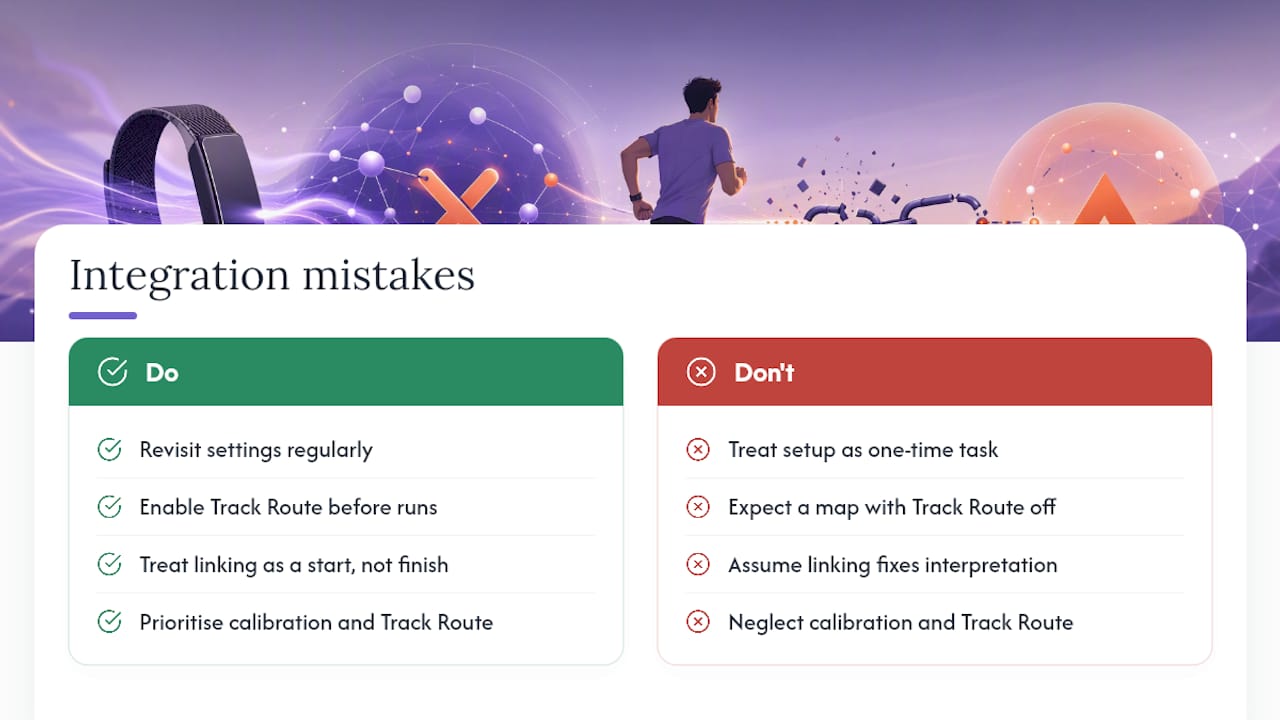
The bigger miss, though, is treating WHOOP and Strava as a finished picture once they’re linked. The connection solves data portability, not data interpretation. You can have perfectly synced heart rate, pace and GPS and still have no clear answer to whether that pace was earned or borrowed against tomorrow’s recovery. That’s a different problem, and it’s the one worth solving next, once the plumbing between these two apps is actually working.
Prioritise getting the calibration period and Track Route setting right first. Everything else in this guide is secondary to those two.
— Kerem
Get more from your WHOOP data with Heala
Heala is the layer that turns synced WHOOP and Strava data into a plan you can actually act on, rather than two feeds you have to interpret yourself. Where Strava shows you what you did and WHOOP shows you the strain behind it, Heala pulls both together with your sleep, nutrition and recovery data to adjust what you should do tomorrow, not just log what happened today.
That matters most on the days your numbers disagree with how you feel. A synced strain score and a synced pace chart don’t argue with each other, they just sit side by side. Heala’s daily plans adjust automatically as new WHOOP and cardio data comes in, so you’re training against your actual recovery state rather than last week’s plan. If you’re already syncing WHOOP with Strava and want that data working harder for you, start a free trial at Heala and connect your WHOOP account in minutes.
Sources
- WHOOP and Strava | Strava Help Center
- Strava Integration | WHOOP Support
- How WHOOP and Strava work together | WHOOP
- WHOOP is now Strava compatible | PR Newswire
Recommended
Heala opens 2 October 2026
Free forever — Pro is optional.
Photo food logging, adaptive training, a morning recovery score and a 3D body twin, in one app.