 heala
healaExport Health Data from Apple, Android, and Fitbit Without Uploading It

Export Health Data from Apple, Android, and Fitbit Without Uploading It
Export Apple Health data from the Health app to a ZIP file containing XML, or export Google and Android health data through Google Takeout or Health Connect to get JSON, CSV or a ZIP archive. Either way, you will end up with heart rate, steps, workouts and sleep records. Apple’s XML usually needs converting before it’s readable in a spreadsheet.
TL;DR:
- Exporting Apple Health data as XML can result in very large files that require conversion to CSV or JSON for easier analysis in spreadsheets.
- Google health data exports are available via Takeout in CSV or JSON formats, while Health Connect offers automated, scheduled ZIP backups mostly excluding clinical records.
- Using third-party tools depends on local processing, security practices, permissions, and encryption, with careful consideration needed before trusting any app with sensitive health data.
- Converting export formats requires attention to time zone differences, units, and data summaries to ensure accurate and manageable files, especially for clinical use.
- Regularly backing up data and storing it securely, with narrow date ranges and encrypted files, enhances privacy and helps prevent export failures during large, multi-year requests.
Table of Contents
- How do you export Apple Health data on iPhone?
- How do you export Google and Android health data?
- Should you use a third-party export or automation tool?
- What file formats will you get, and how do you convert them?
- How do you keep exported health files private and secure?
- Why do exports fail, and how do you fix them?
- Where does Heala fit once you’ve exported your data?
- Why exports matter more now than they did a few years ago
- Keep your exported data working for you
- Sources
How do you export Apple Health data on iPhone?
Apple’s own guide to exporting your Health data walks through the same flow described here, and it hasn’t changed much across recent iOS versions. Here’s the exact path:
- Open the Health app and tap your profile picture in the top right corner.
- Scroll down and tap Export All Health Data.
- Choose where to send the archive: AirDrop to a Mac, save to Files, or upload straight to iCloud Drive.
- Wait for iOS to build the ZIP. For a phone with several years of workout and sleep history, this export process may take several minutes.
Inside that ZIP sits export.xml, the file holding your full HealthKit record, alongside export_cda.xml, a smaller clinical document export. The XML format is comprehensive but not built for casual reading. Every heart rate sample, every step count bucket, every sleep stage gets logged as a separate XML entry, which is why a year of data can easily produce a file running into hundreds of megabytes.
Once the export lands on a computer, most people want it in something a spreadsheet can open. That means converting XML into CSV or JSON, either with a script or a dedicated converter tool built for this exact schema.
Pro Tip: If your export keeps failing or stalling on an older iPhone, try it plugged into power overnight. Health exports run in the background and iOS can throttle or pause the job if the battery drops too low mid-archive.
Common snags include running out of local storage before the ZIP finishes building, a permissions prompt asking you to confirm Health access again, or an export that simply takes far longer than expected because you’re exporting years of continuous heart rate data rather than a single month.
- Insufficient storage: free up space on the phone itself, not just iCloud, before starting.
- Stuck permission prompt: back out to Settings, confirm Health access for the app, then retry.
- Very slow export: this is normal for multi-year histories; leave the phone connected to Wi-Fi and power.
How do you export Google and Android health data?
Google splits health exports across two tools depending on what you’re after: Google Takeout for a full data dump, and Health Connect for ongoing scheduled backups.
For a one-off export through Google Takeout:
- Go to takeout.google.com and click Deselect all.
- Scroll to find Fit (or Health Connect data, depending on your device) and tick it.
- Choose delivery: a download link emailed to you, or direct export to Google Drive.
- Select file type and size, then start the export.
Google’s documentation notes that archive preparation may take hours, especially for accounts with extensive Fit history. You’ll get an email once it’s ready.
Health Connect offers a different route for people who want backups without repeating the Takeout process every time. Android’s Health Connect scheduled export feature lets you set a cadence, daily, weekly or monthly, and it writes a ZIP straight to your chosen cloud storage automatically. Worth knowing: Health Connect scheduled exports typically don’t include clinical health records, only the fitness and wellness data types the app tracks.
What you’ll get:
- JSON or CSV files from Takeout, both far easier to open directly in a spreadsheet or analysis script than Apple’s XML.
- A ZIP archive from Health Connect’s scheduled export, ready to drop into cloud storage.
- Legacy Fitbit exports, if your account predates the Google migration, which follow a slightly different flow worth checking if your Fitbit history seems to be missing after switching to Health Connect.
Should you use a third-party export or automation tool?
Not every export needs to be manual. Three broad categories of tool exist, and picking the right one depends on how often you need the data and what you’re doing with it.
One-off converters suit someone who exported their Apple Health ZIP once and just needs it turned into a CSV to email a coach. Automated background exporters suit ongoing analysis, quietly pulling fresh data on a schedule and pushing it to cloud storage without you touching the phone again. Developer tools and command-line utilities suit anyone building a custom dashboard or feeding data into their own database. Tools built specifically for Apple Health exports fall into more than one of these categories, offering both scheduled background exports and format conversion to CSV, JSON or GPX in one pass.
Before trusting any of them with health data, run through a short checklist:
- Does it process data locally on your device, or does everything get uploaded to a third-party server first?
- Can you use it without creating an account, if that matters to you?
- Is the archive encrypted in transit and at rest?
- Does it ask for more permission scope than the export actually needs?
For anyone syncing activity data between fitness services rather than converting a single file, a resource like Conppi’s sports partner finder is a useful adjacent tool when you’re trying to keep training data consistent across apps and training partners.
Match the destination format to the job: CSV for spreadsheets, JSON for anything feeding a developer tool or dashboard, and GPX or FIT files specifically for route and activity data if you’re exporting workouts rather than vitals.
What file formats will you get, and how do you convert them?
Three format families cover almost everything you’ll encounter. Apple exports XML built on the proprietary HealthKit schema. Google exports JSON or CSV depending on the tool. Activity-specific data, GPS routes and workout files, tends to arrive as GPX or FIT regardless of platform.
Converting between them depends on what you’re doing next:
- XML to CSV or JSON: the standard move for spreadsheet analysis, usually needs a converter script since Apple’s HealthKit schema isn’t built for direct human reading.
- XML or JSON to FHIR: only necessary when you’re sending data into a clinical system that expects the Fast Healthcare Interoperability Resources standard rather than a raw export.
- Date-range filtering before conversion: pulling out just the last three months rather than converting five years of records at once, which keeps files manageable.
Converting your own data into a clinically useful structured format remains a genuine practical hurdle for most people, according to research on sharing health data for good, which notes that portability barriers persist even though users legally own the underlying data.
If you’re preparing an export for a clinician, keep it simple: pick a relevant date range, add a short CSV summary of key trends rather than handing over the entire raw archive, and flag anything unusual yourself rather than assuming they’ll spot it in thousands of rows.
Watch for three things that quietly break conversions: timezone mismatches between when a device recorded something and when the export timestamps it, unit inconsistencies (kilograms versus pounds, or a mix within one file), and confusing aggregated daily summaries with individual record-level entries when they get merged during conversion.
How do you keep exported health files private and secure?
An export file is a single, portable copy of years of intimate health information, which makes it worth treating with more care than an ordinary document.
- Store exported archives encrypted, either as a password-protected ZIP or inside encrypted cloud storage rather than sitting loose in a downloads folder.
- Share with a clinician through a secure patient portal or an encrypted link, never as a full ZIP attached to a plain email.
- Once you’ve finished an export, review app permissions and revoke background Health or Fit access you no longer need.
- Favour structured formats generally, a habit that aligns with the direction EU health data regulation is pushing, which calls for interoperable formats specifically to widen personal access and portability.
Pro Tip: If a clinician only needs a snapshot, not your full history, export a narrower date range rather than the whole archive. Smaller files are easier to encrypt, easier to share, and give away less if a link is ever forwarded by mistake.
Why do exports fail, and how do you fix them?
Most failures trace back to one of three causes: the archive generation itself timing out on years of continuous data, the device running out of local storage mid export, or a server-side queue backing up during a Takeout request.
- Narrow the date range or record types selected rather than exporting everything at once.
- Use a wired transfer or AirDrop instead of a cloud upload for very large files, particularly over unreliable Wi-Fi.
- Keep two backups, one in cloud storage and one offline, with consistent file names and a quarterly export habit rather than a single annual scramble.
- If an export repeatedly fails, contact platform support with your device model, export size, and roughly how much history you’re trying to pull.
Where does Heala fit once you’ve exported your data?
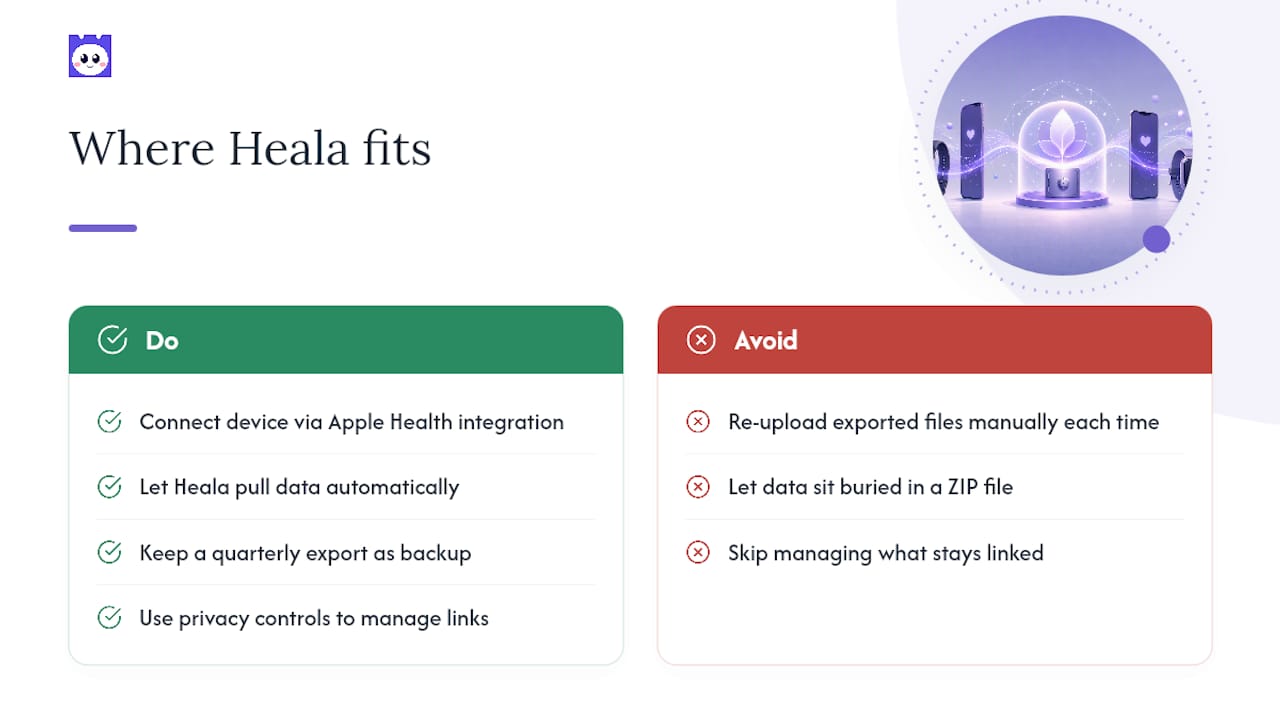
A raw export is a snapshot. Heala is built to be the ongoing home for it, pulling in data from Apple Health, Fitbit and other wearables so trends actually surface instead of sitting buried in a ZIP file.
Once you’ve exported and want it somewhere useful, connect your device directly through Heala’s Apple Health integration rather than re-uploading files manually each time. From there, Heala surfaces weight trends, HRV patterns and sleep consistency automatically as fresh data arrives.
A quarterly export still makes sense as a personal backup, even once you’re connected. Privacy controls let you manage exactly what stays linked and what doesn’t.
Why exports matter more now than they did a few years ago
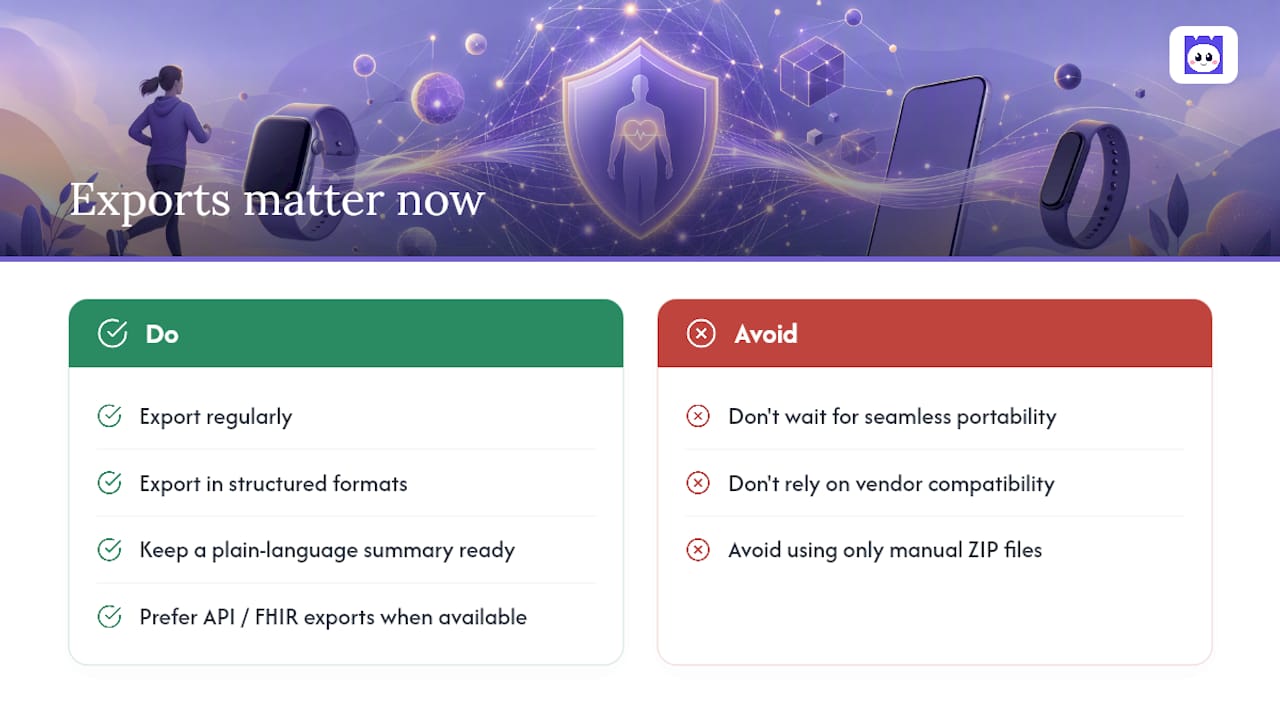
The direction of travel is away from manual ZIP files and towards API-led exchange, with FHIR increasingly the standard clinical systems expect. Consumer portability still lags behind that ambition. Vendor APIs and export formats differ enough that a clean handoff between platforms isn’t guaranteed yet.
For now, the practical move is to export regularly, in structured formats where the option exists, and keep a plain-language summary ready for any clinician who needs one. Waiting for seamless portability to arrive is a bet most people’s health history can’t afford to make.
— Kerem
Keep your exported data working for you
Exporting your data is only half the job. Storing it in a ZIP file that never gets opened again defeats the point of pulling it out of Apple Health or Google Takeout in the first place. This app gives that data an actual purpose: connect your export or wearable directly and it turns years of scattered heart rate, sleep and workout records into trend lines you can actually read, weight direction, recovery patterns, sleep consistency, without you touching a spreadsheet.
Start by exporting from your device using the steps above, then link it through Heala’s weight tracking or sleep tracking features to see where your numbers are actually heading. If cycle data matters to your health picture, cycle tracking sits alongside the same dashboard. You control what stays connected and what doesn’t at every step. Head to Heala and connect your first export today.
This article is general information, not a substitute for advice from a qualified doctor. Consult a qualified healthcare professional about your own circumstances before acting on anything here.
Sources
- Share your data in Health on iPhone — Apple Support
- Download your data — Google Fit / Takeout guidance
- Sharing and utilising health data for the public good — PMC article
- Regulation (EU) 2025/327 establishing the European Health Data Space
Recommended
Heala opens 2 October 2026
Free forever — Pro is optional.
Photo food logging, adaptive training, a morning recovery score and a 3D body twin, in one app.