 heala
healaGet Fitbit Data Into Apple Health in 15 Minutes Using Google Health
Get Fitbit Data Into Apple Health in 15 Minutes Using Google Health
You can now sync Fitbit data to Apple Health natively through the Google Health app. Update the app, grant permissions, and enable Connections → Apple Health, and steps, workouts and sleep start flowing through automatically. It is the fastest, most reliable route available, though heart rate variability and some intraday metrics still don’t transfer consistently, so power users should keep a fallback plan for that data.
TL;DR:
- Native Fitbit to Apple Health sync through Google Health reliably transfers steps, sleep, workouts, heart rate, and other core metrics, but HRV and intraday data may not transfer consistently.
- Ensuring compatibility requires updated iOS 16.4 or later, Google Health version 5.05+, correct Google Account login, background app refresh, and proper permission reauthorization after reinstalling.
- Troubleshooting sync issues involves verifying permissions, reconnecting manually in Google Health, and force-opening specific metrics to prompt data transfer, rather than just waiting.
- Native sync does not backfill years of historical Fitbit data; users should export data manually or use third-party tools for bulk past data import, which may lack some older fields.
- Power users should keep a fallback plan and tools for HRV and intraday metrics, which are still in progress and may require third-party apps for complete historical and granular data accuracy.
Table of Contents
- How do you connect Fitbit to Apple Health?
- What do you need before you start?
- What actually transfers, and what still doesn’t?
- Do you still need a third-party sync app?
- Why isn’t my Fitbit data showing up in Apple Health?
- Can you import your old Fitbit history, not just new data?
- Why this native sync matters more than it looks
- Where Heala fits once your data is synced
- Official help and trusted coverage to check for updates
- Sources
- FAQ
How do you connect Fitbit to Apple Health?
Getting this working is straightforward and quick if your apps are current. Google Health’s update lets you write Fitbit workouts, steps, sleep and vitals directly into Apple Health, and the whole process runs through one settings menu rather than a maze of toggles spread across two apps, according to The Verge.
Here’s the sequence that works:
- Update both apps first. Go to the App Store and confirm you’re running the latest iOS and the newest Google Health build. Skipping this step is the single most common reason setup fails.
- Open Google Health and find Connections. Tap your profile, then go to Connections → Apps and services → Apple Health.
- Tap Get started, then Agree. You’ll be prompted to hand over specific permissions category by category, covering things like activity, sleep, heart rate and body measurements.
- Grant each permission in Apple Health. iOS will bounce you into its own permissions screen, where every data type needs an individual “Allow” toggle. Don’t rush this screen.
- Confirm the connection from the Apple Health side. Open Apple Health, tap your profile icon, go to Sharing → Apps, and check that Google Health is listed with the correct toggles switched on.
- Trigger an initial write. Open a specific metric, such as Steps or Sleep, inside Google Health. This often kicks off the first sync rather than waiting for a background refresh.
- Check Apple Health for new entries. Give it ten to fifteen minutes, then look in the Browse tab under Activity or Sleep to confirm data has actually landed.
The setup flow itself mirrors what’s described in several independent walkthroughs, including one from Lifehacker Australia, which is a useful sanity check if a step looks different on your device.
Pro Tip: If nothing appears after the first sync attempt, don’t just wait longer. Back out of Google Health, force close it, then reopen it and revisit the specific metric screen. That manual nudge resolves more stalled syncs than patience ever does.
What do you need before you start?
Most sync failures trace back to a prerequisite nobody checked. Run through this list before you touch the Connections menu:
- iOS 16.4 or later is the minimum version Google requires for the integration to work at all, per Google’s own Health Help Centre.
- Google Health app version 5.05 or higher, since that’s the build where “Sync to Apple Health” was introduced.
- A single, correctly signed-in Google Account that matches the one linked to your Fitbit history. Mixed accounts are a quiet, common cause of missing data.
- Background App Refresh switched on for Google Health, found under Settings → General → Background App Refresh. Without it, syncs only happen when you open the app.
- Motion & Fitness tracking checked, under Settings → Privacy & Security. If your iPhone’s own tracking is also active, you risk double counting steps and workouts.
- Reauthorisation after any reinstall. Deleting and reinstalling Google Health wipes its Apple Health authorisation, so you’ll need to repeat the permissions steps from scratch.
None of these are difficult fixes on their own, but skipping just one tends to produce the exact symptoms people post about in forums: nothing syncing, or half the categories missing.
What actually transfers, and what still doesn’t?
Most of your day-to-day metrics move across cleanly. Steps, workouts, sleep sessions and stages, heart rate, resting heart rate, blood oxygen (SPO2), weight, body measurements, calories and distance all sync as part of the standard integration described by The Verge.
Heart rate variability is the metric readers keep flagging as absent. Early hands-on testing from Android Authority confirms that while most core categories sync reliably, HRV in particular doesn’t transfer consistently yet. If you rely on HRV trends to gauge recovery, don’t assume that data is quietly appearing in Apple Health just because everything else worked.
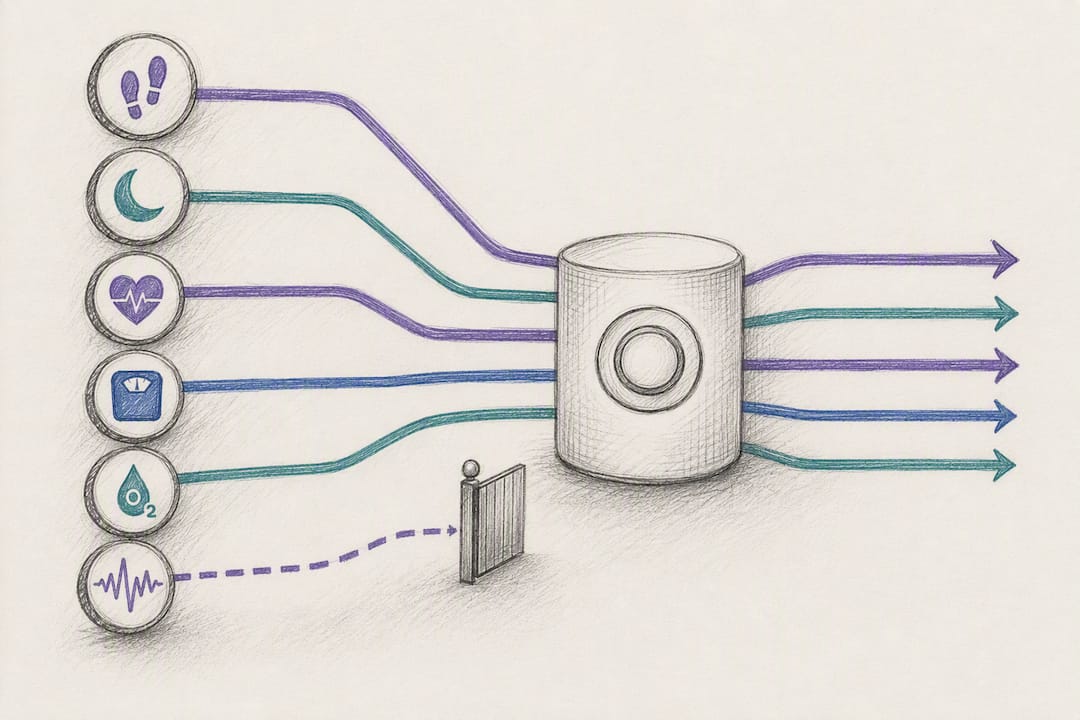
The gap between the two data types matters here. Apple Health tends to show daily-level summaries clearly, but intraday granularity, meaning readings captured every few minutes rather than once a day, is a different technical ask. A staggered rollout means full parity across every field and every device model isn’t guaranteed yet, and HRV along with certain intraday fields are the usual early gaps in that rollout.
A few things shape exactly what you’ll see:
- Permissions granted per category directly control what appears; a skipped toggle means that data type simply won’t show up.
- Device model affects what Fitbit even measures in the first place, so older trackers may never have collected some of the newer vitals.
- App version drift between Google Health and iOS can quietly disable specific categories without any error message.
If your Fitbit model doesn’t expose intraday heart rate through its cloud API at all, no sync method, native or third-party, will produce that data. Checking your raw Fitbit export for timestamped intraday readings is the quickest way to find out before assuming a sync problem exists.
Do you still need a third-party sync app?
Sometimes, yes. Native sync handles ongoing data well, but it wasn’t built for bulk historical imports or granular field control. That’s where a dedicated third-party sync app, such as myFitnessSync or Fitbit to Apple Health Sync, still earns its place. App Store listings for these tools highlight exactly this: full history exports and finer control over which fields map where, something the native integration doesn’t prioritise.
Before installing one, weigh a few things:
- Read the privacy policy properly, since you’re granting a third party access to years of health data, not just a snapshot. Heala’s own privacy approach is worth comparing against as a benchmark for what reasonable data handling looks like.
- Check recent reviews for duplicate-entry complaints, which are the most common third-party sync failure mode.
- Understand the pricing model upfront. Some of these apps are free for basic syncing but charge for historical imports or unlimited categories.
The sanest workflow, and the one reflected across most current guides, is running native sync for everything going forward and reserving a third-party tool for a single, targeted import of your older history. Running both apps continuously, writing the same live data twice, is how duplicate entries creep in. Use one for ongoing writes and the other, if at all, for a one-off backfill.
Why isn’t my Fitbit data showing up in Apple Health?
Work through this list in order before contacting anyone’s support team, since most fixes take under two minutes each.
- Confirm both app versions again. This sounds repetitive, but version mismatches after an automatic update are extremely common.
- Check you’re signed in to the correct Google Account inside Google Health, particularly if you use different accounts for work and personal devices.
- Verify your internet connection. Syncing over a weak or restricted network silently fails more often than it errors out.
- Re-check every permission category in Apple Health. Go to Sharing → Apps → Google Health and look for any toggle that’s reverted to off.
- Toggle permissions off, then back on, for the specific category that’s missing. This forces Apple Health to re-request the data rather than relying on a stale connection.
- Force a manual sync by opening the exact metric screen inside Google Health, such as Sleep or Steps, rather than just the home screen.
- Disable native iPhone fitness tracking under Settings → Privacy & Security → Motion & Fitness if you’re seeing duplicate steps or workouts from both Fitbit and the iPhone’s own sensors.
- Reinstall only as a last resort, and remember you’ll need to re-grant every Apple Health permission from scratch afterwards, since the authorisation doesn’t carry over.
- If it’s still broken, report specifics to support, not just “it’s not syncing.” Note your iOS version, Google Health version, and exactly which metric category is affected.
Pro Tip: Keep a screenshot of your Sharing → Apps → Google Health permissions screen from when everything worked correctly. It’s the fastest way to spot exactly which toggle reverted after a future iOS update.
Can you import your old Fitbit history, not just new data?
Native sync and historical import solve two different problems. The Connections setup handles ongoing writes going forward, but it isn’t designed to backfill years of past Fitbit data in one go.
For that, you’re generally looking at a manual export from Fitbit’s own data tools, combined with a third-party app capable of mapping that export into Apple Health’s format. Completeness varies. Older exports commonly lack fields that newer Fitbit models started capturing later, so don’t expect a decade of history to arrive with identical detail to last week’s sync.
A few practical habits protect you here:
- Export and archive your own Fitbit data periodically, independent of any sync method, so you’re never relying solely on a third-party app’s continued existence.
- Review any third-party app’s privacy policy before granting account access, since a historical import typically requires broader permissions than an ongoing sync does.
- Treat imported history as a one-off task, not something to repeat regularly, to avoid creating duplicate entries across multiple import attempts.
Why this native sync matters more than it looks
This isn’t a small convenience update. For years, iPhone owners wearing a Fitbit were stuck stitching together two ecosystems with third-party workarounds, and that friction pushed people toward apps that only ever told half the story. Native two-way sync changes that calculation: Apple Health can now genuinely function as a single source of truth rather than one of several competing logs.
Power users shouldn’t treat this as a finished job, though. If HRV or intraday heart rate is central to how you read recovery, check whether it’s actually landing in Apple Health rather than assuming the update covers everything Fitbit measures. HRV means far more as a personal trend than a single number, so gaps in that specific data matter more than a missing step count ever would. Keep an export or a third-party fallback on hand for anything you can’t afford to lose while the rollout catches up.
— Kerem
Where Heala fits once your data is synced
Getting Fitbit data into Apple Health solves the plumbing problem. It doesn’t tell you what that data actually means week to week, and that’s the gap Heala is built to close. Once your steps, sleep and heart rate are flowing through, Heala pulls that history into trend lines you can actually act on, pairs your recovery data with hydration and habit tracking, and lets you log meals with a photo instead of manually searching a database.
For anyone tracking cycles alongside training load, Heala’s cycle tracking feature reads that data together rather than as separate charts you have to mentally combine yourself. If you’re mixing wearables, comparing how Heala handles Fitbit data specifically is a sensible next step before committing to a single dashboard. Whatever you choose, check the privacy terms of any app you connect, since you’re granting access to genuinely sensitive information either way. Start by linking your synced Apple Health data at Heala and see what your last week of Fitbit data actually says once it’s read as a trend, not just a log.
Official help and trusted coverage to check for updates
- Google’s Health Help Centre has the canonical setup steps and permission requirements, and it’s the first place to check when Google adjusts the flow.
- The Verge’s coverage confirmed the rollout and what data categories it covers.
- TechRadar’s write-up explains why this closes a long-standing gap for iPhone owners with Fitbits.
Sources
- Your Fitbit data can now connect directly to Apple Health | The Verge
- Google just made managing your Fitbit health data far easier on iOS | TechRadar
- How to sync Google Health and Apple Health — Android Authority
- How to finally sync your Fitbit data to Apple Health — Lifehacker AU
FAQ
Why is my Fitbit no longer syncing with my iPhone?
The most common causes are an outdated Google Health app, a reverted permission toggle in Apple Health, or being signed into the wrong Google Account. Work through the troubleshooting checklist above before assuming it’s a bigger fault.
How do I sync my iPhone and my Fitbit?
Update Google Health, open Connections → Apps and services → Apple Health, and grant each permission category when prompted. Confirm the connection from Apple Health’s Sharing tab afterwards to make sure the toggles actually switched on.
What is the best free app to sync my Fitbit with Apple Health?
Google Health’s native sync is free and handles ongoing data without extra software, making it the most reliable starting point. A dedicated app can then turn that synced data into readable trends alongside your meals, hydration and recovery.
Is Apple compatible with Fitbit?
Yes, through Google Health’s native integration rather than a direct connection between Fitbit and Apple Health. Most core metrics sync reliably, though HRV and some intraday fields remain inconsistent for now.
Does syncing Fitbit to Apple Health bring across my full history?
No, native sync is built for ongoing writes going forward, not bulk historical import. For older data, you’ll typically need a manual export combined with a third-party tool, and even then some fields from older records may be missing.
Recommended
Heala is out now
7 days free on the annual plan.
Photo food logging, adaptive training, a morning recovery score and a 3D body twin, in one app.