 heala
healaFitbit Owners: Send Data to Apple Health via Google Health in 4 Steps
Fitbit Owners: Send Data to Apple Health via Google Health in 4 Steps
Fitbit data syncs automatically to Google Health over Bluetooth once your tracker is paired and within range. From there, Android users bridge that data onward through Health Connect, while iPhone owners can now use Google Health’s own Apple Health connector instead of a third-party workaround. Most everyday metrics, including steps, sleep and heart rate, transfer cleanly. A handful of specialised readings can lag or drop, which the sections below explain.
TL;DR:
- Most Fitbit data syncs automatically via Bluetooth, but issues like permission misconfigurations in Health Connect or outdated firmware can cause silent failures.
- Connecting Google Health to Apple Health on iPhone provides a more reliable two-way transfer of key metrics such as steps, sleep, and heart rate, reducing gaps from third-party bridging apps.
- Users should verify and adjust app permissions, ensure Bluetooth is active, and keep firmware updated before considering factory resets for sync issues.
- Exporting Fitbit data for external analysis or backup can take days for large histories and should be handled carefully due to privacy concerns with personal health information.
- Confirming sync accuracy involves comparing timestamps and data records in Google Health and Apple Health, noting that small discrepancies are normal but large gaps indicate problems.
Table of Contents
- How Fitbit devices sync to Google Health
- Connecting Google Health to Health Connect on Android
- Syncing Google Health with Apple Health on iPhone
- Common Fitbit sync problems and how to fix them
- Exporting Fitbit and Google Health data for other platforms
- How to verify your steps, sleep and heart rate synced correctly
- Why accurate syncing matters once your data reaches Heala
- Author perspective and quick takeaways
- Try Heala once your Fitbit data is syncing properly
- Sources
- FAQ
How Fitbit devices sync to Google Health
Every modern Fitbit tracker and watch uses Bluetooth Low Energy (BLE) to talk to your phone, which is why sync happens quietly in the background whenever the two are close enough and your Bluetooth is switched on. The exception is the Fitbit Aria and Aria 2 scale, which skips Bluetooth entirely and syncs your weight over Wi-Fi as soon as you step off it.
Getting set up takes a few minutes:
- Install Google Health from the App Store or Google Play.
- Sign in with an adult Google Account. A child or family-managed account is a common cause of failed setups, so use your main personal login.
- Tap “Add device” and select your Fitbit model from the list.
- Keep your tracker within close proximity of your phone during pairing and ensure it has sufficient charge.
- Confirm the device tile shows a recent “last synced” timestamp when pairing finishes.
Automatic sync usually fires every few hours, but you don’t have to wait for it. If you want to force an update right now:
- Pull down on the Google Health home screen to refresh manually.
- Open your device tile, tap “Connections,” then “Sync now.”
- Check the timestamp under the device name to confirm the sync actually landed rather than just attempting to.
Aria and Aria 2 owners get one extra convenience: because the scale syncs over home Wi-Fi rather than Bluetooth, a weigh-in updates Google Health even if your phone is in another room. Everything else on your wrist still depends on proximity and a live Bluetooth connection.
Connecting Google Health to Health Connect on Android
Health Connect is the local data store on your Android phone that lets separate health and fitness apps read and write to a shared pool without talking to each other directly. Google Health uses Health Connect as the handoff point for any app on your phone that wants access to your Fitbit-derived activity, sleep or heart rate figures, including apps like Heala.
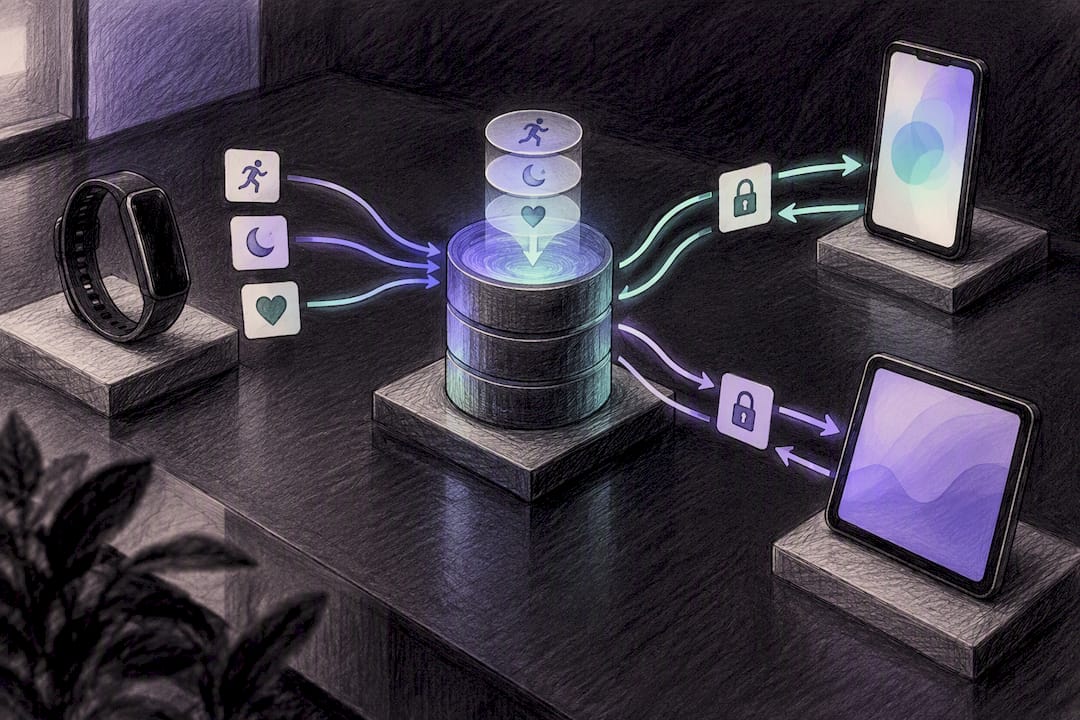
The catch is that nothing flows until you grant permission, category by category. Health Connect splits access into read and write for each data type, and getting this wrong is the single most common reason data “syncs” in Google Health but never reaches a connected app.
Categories worth checking include:
- Steps and distance: usually needs read access granted to any app you want counting your activity.
- Heart rate: often restricted by default; enable read access explicitly for each app.
- Sleep sessions: frequently overlooked, since some apps request write access you don’t actually want to grant.
- Weight: relevant if you use an Aria scale and want the figure to appear elsewhere.
One in every handful of sync complaints traces back to a permission toggle, not a technical fault. To check or fix this, open Health Connect from your Android settings (or through the Google Health app’s own settings menu), tap “App permissions,” and review each connected app’s access individually. If a metric refuses to appear somewhere it should, this is the first place to look, well before you touch Bluetooth or firmware.
Syncing Google Health with Apple Health on iPhone
If you’re on an iPhone, Google Health now offers a native two-way connection to Apple Health, which is a meaningful change from the patchwork of third-party bridge apps iPhone users relied on previously. The Verge reported that the update lets Google Health send steps, workouts, sleep and vitals straight into Apple Health, and pull data back the other way too.
Setting it up takes four steps:
- Update Google Health to the latest version from the App Store.
- Open “Connections,” then “Apps & services.”
- Select Apple Health from the list of available connections.
- Allow each data category individually. iOS will prompt you category by category rather than granting blanket access.
Why bother with this over an old third-party connector? Reporting on the rollout from 9to5Mac points out that bridge apps historically lacked the API access to move complex data types like sleep stages reliably, which meant gaps and duplicate entries were common. A native connection removes that middleman entirely.
Data types that move reliably include:
- Steps, distance and active minutes
- Sleep sessions (start and end times, plus stage breakdowns in most cases)
- Resting and workout heart rate
- Body weight, if you use a synced scale
Known gaps still exist. Some advanced vitals and specific heart rate variability fields don’t always map cleanly between the two ecosystems, according to MacRumors’ coverage of the update. To verify what actually arrived, open the Apple Health app, go to “Browse,” select the relevant category, and confirm today’s entry carries a Google Health or Fitbit source tag rather than a blank or duplicate one.
Common Fitbit sync problems and how to fix them
Most sync failures come down to common issues, and working through them in order saves you from a factory reset you probably don’t need.
- Update everything first. Check for updates to your phone’s operating system, the Google Health app, and your Fitbit’s own firmware. An outdated firmware version is a frequent, invisible cause of stalled syncs.
- Check your tracker’s battery. Anything below roughly 50% can cause Bluetooth to drop mid-sync. Charge it fully before troubleshooting further.
- Confirm Bluetooth and app permissions. On Android, Google Health needs Location or “Nearby devices” permission to find your tracker at all; without it, pairing silently fails.
- Look at background data and battery optimisation. Many phones restrict background activity for apps to save power, which quietly blocks automatic syncing even when everything else is configured correctly.
- Toggle Bluetooth off and back on, then restart both your phone and your tracker. This clears a surprising number of one-off glitches.
- Clear the app cache or reinstall. On Android, go to Settings → Apps → Health → Storage & cache → Clear cache. On iOS, you’ll need to “forget” the device under Bluetooth settings first, then fully uninstall and reinstall Google Health, since iOS doesn’t offer a standalone cache-clear option.
- Remove duplicate paired devices. If you’ve swapped trackers or re-paired the same one twice, Google Health can get confused about which device is authoritative.
Pro Tip: Before you touch any settings, note the exact time your last successful sync landed. If troubleshooting fixes things, you’ll want that timestamp to confirm the gap in your data and know exactly what to expect to backfill.
A factory reset should be your last resort, not your second step. It clears locally stored settings on the tracker itself, and while your synced history in Google Health stays intact, anything recorded on the device since its last successful sync will be lost. If you’ve worked through the checklist above and sync still fails, Google Health’s own troubleshooting guide is worth checking before you contact support. It covers a few device-specific quirks this list doesn’t.
Exporting Fitbit and Google Health data for other platforms
Sometimes syncing isn’t enough. You want a portable copy of everything, either as a backup or to move to a different platform entirely. Google Health lets you request a full account export through your account settings, and while smaller exports can complete within hours, larger histories with years of minute-level data may take several days to prepare.
The export typically includes:
- Daily and minute-level activity, including steps and distance
- Sleep session data with stage breakdowns
- Heart rate readings across whatever period you select
- Weight entries, if you’ve used a connected scale
Files usually arrive as a downloadable archive containing structured data you can open or parse, most commonly in JSON or CSV format depending on the category. If you’re importing into a third-party platform, check its upload requirements first. Most accept CSV directly but choke on nested JSON structures, so you may need to flatten the file before uploading. Watch for duplicate entries too. If a device was still syncing during the export window, you can end up with overlapping records that inflate your totals.
One caution worth taking seriously: an exported archive contains detailed personal health information, so treat it the way you’d treat a medical record. Avoid sharing exported files over unencrypted email or storing them in a public cloud folder without checking the sharing settings first.
How to verify your steps, sleep and heart rate synced correctly
Confirming a sync worked is faster than most people assume. Start with the basics, then work into the detail if something looks off.
- Open the device tile in Google Health and check the “last synced” timestamp. Anything older than a few hours during the day is worth investigating.
- Compare minute-level step totals against what your tracker’s own display shows. Small discrepancies of a few steps are normal; a gap of hundreds usually means a partial sync.
- Check that workout timestamps match when you actually started and finished exercising, not just the sync time.
- Open your sleep history and confirm last night’s session appears with a start and end time, not just a duration figure.
- Look at your heart rate trace for gaps. A flat or missing stretch usually means your tracker lost Bluetooth contact for that window.
A sync that looks “missing” right after midnight is frequently just a timing issue, not a fault. Data recorded late at night sometimes takes an extra sync cycle to roll over into the correct day, so give it a couple of hours before assuming something’s broken. If you do need to contact support, screenshot the device tile’s timestamp alongside the specific metric that looks wrong. That pairing gives a support team something concrete to work from rather than a vague “it’s not syncing.”
Why accurate syncing matters once your data reaches Heala
Getting your Fitbit data reliably into Google Health, Health Connect or Apple Health is only useful if something intelligent happens with it afterwards. Heala pulls from wearables including Fitbit and WHOOP to build a single view of your health rather than leaving your steps in one app, your sleep in another, and your nutrition somewhere else entirely.
Once your wearable data is flowing correctly, Heala uses it to:
- Adjust your daily training and recovery recommendations based on real-time heart rate variability and sleep quality
- Combine wearable readings with meal photo logging and hydration tracking, so recovery and nutrition sit in the same place
- Centralise everything across nutrition, workouts, sleep and habits into one adaptive plan instead of several disconnected trackers
If you’ve just confirmed your Fitbit is syncing cleanly to Google Health, that’s the natural point to bring the same data into an app built to act on it rather than just display it.
Author perspective and quick takeaways
The instinct most people have when a sync fails is to reach for a factory reset. That’s almost always the wrong first move. In practice, permission settings inside Health Connect cause more silent failures than Bluetooth or hardware ever do, and they’re the easiest thing to overlook because nothing on screen tells you a category was quietly denied.
Three things worth doing today: check your Health Connect permissions category by category, update Google Health before assuming your tracker is faulty, and if you’re on iPhone, switch to the native Apple Health connector rather than a third-party bridge you set up years ago. It’s simpler, and it’s the option Google now builds for directly.
— Kerem
Try Heala once your Fitbit data is syncing properly
Heala is an app that aims to unify data from steps, sleep and meals into one adaptive plan instead of leaving it scattered across trackers. It offers a subscription service intended to replace the use of multiple apps covering nutrition, training and recovery separately.
Because Heala integrates data from wearables alongside manual logging like meal photos and hydration, recovery and nutrition data are combined in one place rather than in separate silos. If you’re deciding between keeping Apple Health as your hub or centralising everything in one place, the comparison against Apple Fitness walks through where each approach fits. When you’re ready to see it with your own synced data, the Heala pricing page lists the Free tier alongside Pro at £12.99 a month or £59.99 a year for the full integration and coaching features.
FAQ
Why is Fitbit not syncing my data?
The most common causes are Bluetooth being switched off, a permission missing in Health Connect, or background data restrictions blocking the app from running. Work through firmware updates, battery level and permissions before assuming a hardware fault, as covered in the official troubleshooting guide.
How do I force my Fitbit to sync?
Open Google Health, pull down on the home screen to refresh, or open your device tile and tap “Connections” then “Sync now.” Check the timestamp afterwards to confirm the sync actually completed rather than just attempting to.
How do I sync my old Fitbit?
Older Fitbit models still sync over Bluetooth Low Energy the same way newer devices do, so the setup steps in Google Health are identical. If an older tracker won’t pair, check that its firmware is current first, since outdated firmware is a frequent blocker on legacy devices.
Can I sync my Fitbit without the app?
No. Google Health (or the required companion connections) has to be installed to establish the Bluetooth pairing and manage the sync, so there’s no way to move data from the tracker itself without it. Once synced, you can then choose how that data flows onward, whether into Apple Health, Health Connect, or an app like Heala.
What data types transfer between Google Health and Apple Health?
Steps, distance, workouts, sleep sessions and heart rate all transfer reliably through the native two-way connection. Some advanced vitals and specific heart rate variability fields don’t always map cleanly yet, according to reporting on the rollout.
Recommended
Heala opens 1 October 2026
Free forever — Pro is optional.
Photo food logging, adaptive training, a morning recovery score and a 3D body twin, in one app.